Guide
Your first star system
Build a star system of your own, set it moving under gravity, find out whether it holds together, and keep it. No astronomy background needed.
You will work in the workspace at /app. Open it in another tab and follow along.
Every step was followed by hand in the workspace on 2026-10-20, version 1.0.0-beta.803.
Stop 1 of 4
Build it in the System Builder
No account needed
- Open the workspace at /app. If a welcome tour appears, choose Skip tour.
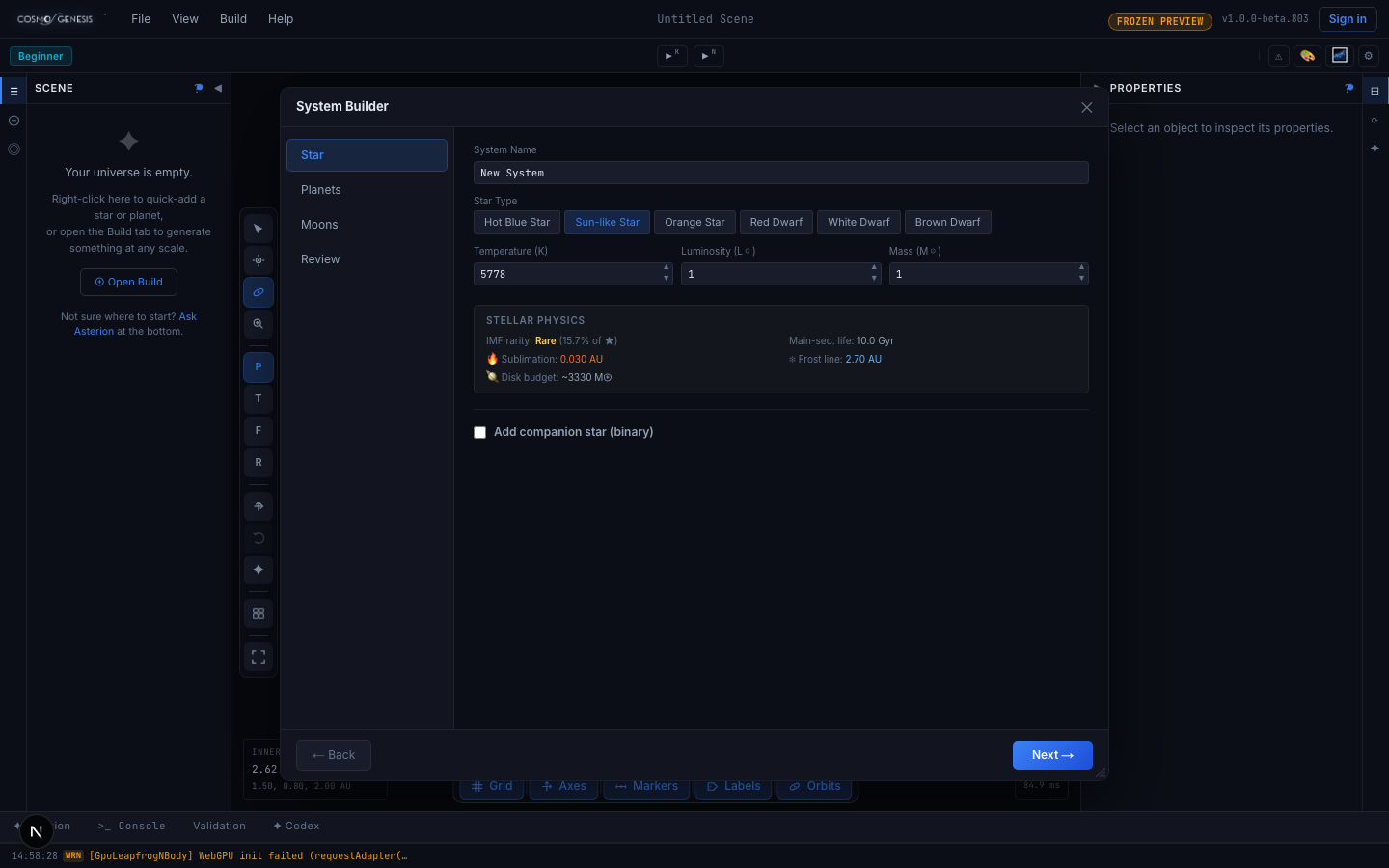
- In the menu bar choose Build, then New Star System. The System Builder opens on its Star step.
- Keep the Sun-like Star or pick another, then choose Next.
- On Planets, choose + Add Planet once or twice, then choose Next.
- Choose Next again to pass Moons. On Review, choose Build System.
What you should see. The builder closes and your system appears in the Scene list on the left, with its planets listed under it.
Stop 2 of 4
Run it under gravity
No account needed. Use a system you built. The built-in Sol system cannot be run this way.
- Finish building first. A gravity run locks the scene against edits.
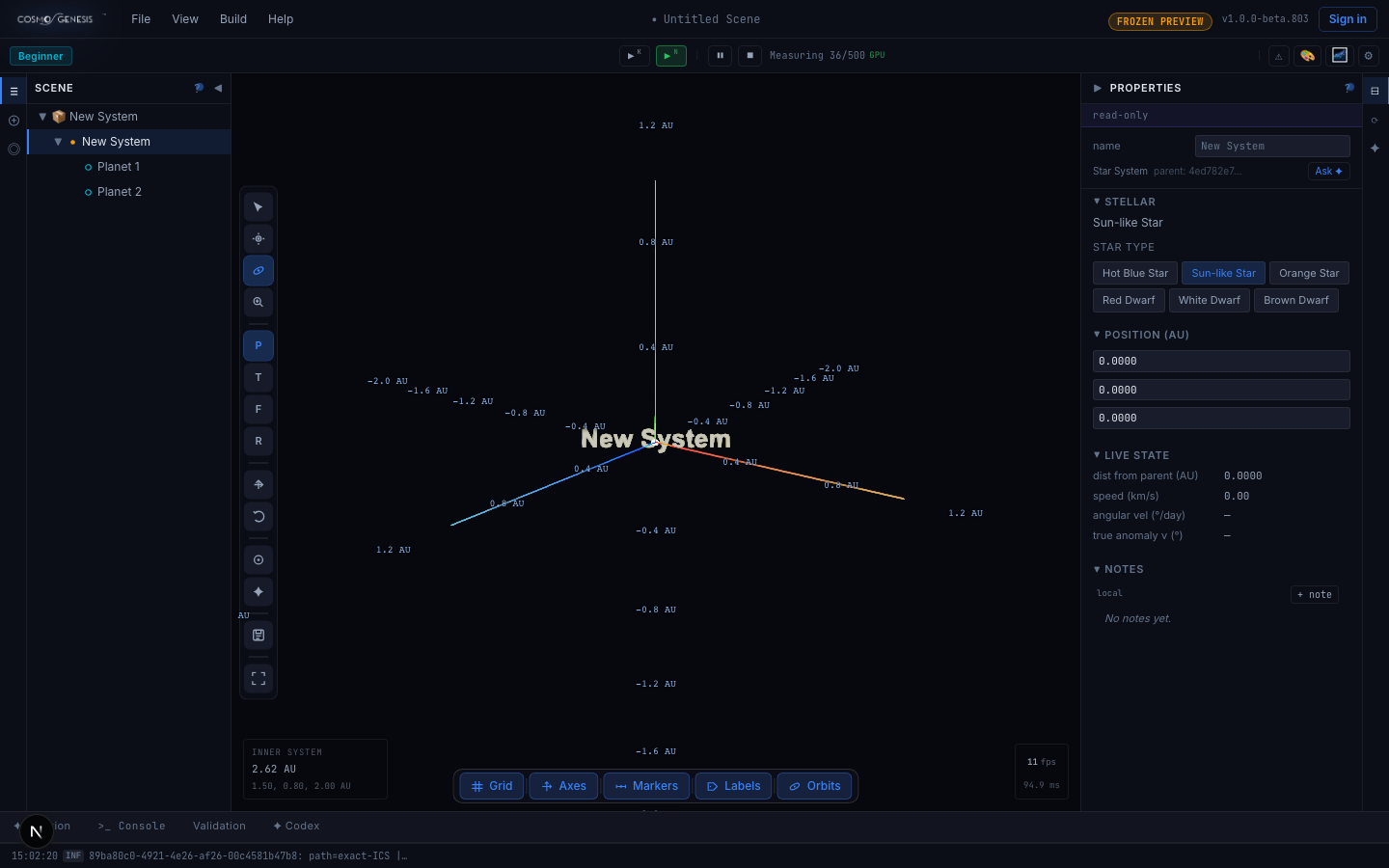
- In the bar under the menu, press the green play button marked with a small N.
What you should see. Pause and stop buttons appear beside play, and a count starts next to them, such as Measuring 36/500. Stop ends the run and returns you to design mode.
Stop 3 of 4
Read the stability grade
No account needed
- Keep the run going and watch the bar under the menu, beside the pause and stop buttons.
- Wait for the count to reach 500. It can take a minute or more, and the grade replaces the count when it is done.
What you should see. A one-word grade. Stable means the system is holding together. Marginal means it is drifting and may not last. Unstable means it is coming apart. Ejecting means a body has been thrown out of the system.

Stop 4 of 4
Save it
No account needed. One scene saves in your browser with no account. A free account gives you more save slots.
- Press the stop button, so the scene is back in design mode.
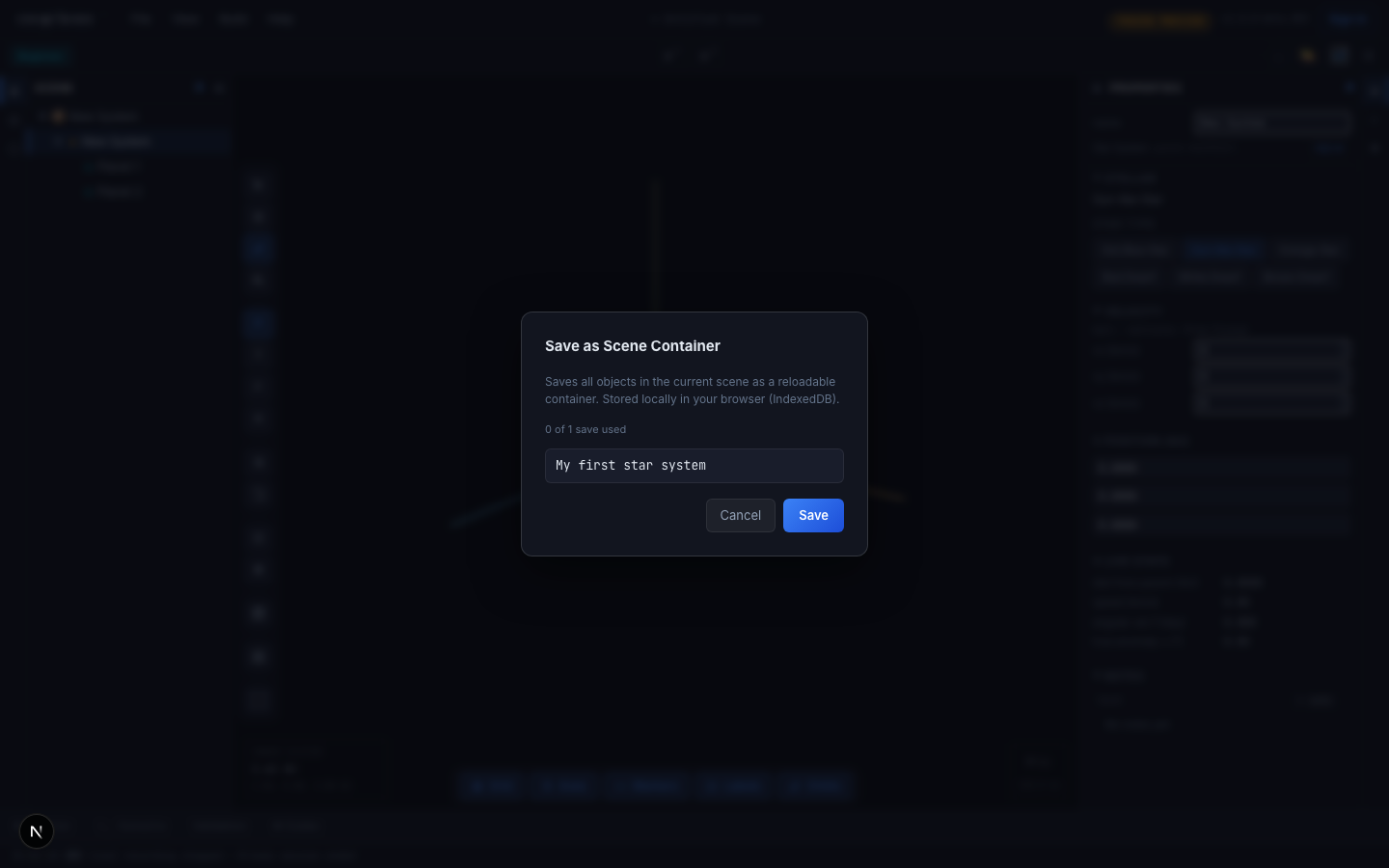
- In the menu bar choose File, then Save.
- Type a name and choose Save.
What you should see. The window says the scene is stored in your browser, and the name you typed appears at the top of the workspace. Next time, File then Open Scene lists it.
At the end you have
A star system you built yourself, a stability grade that tells you how it behaved under gravity, and a saved copy you can open again in your browser.
More guides are being planned. The roadmap says what is here and what is on the way.